Terminal Harbor
I wanted to be able to better manage and organize all my terminal sessions. Between several shells and a few AI-agent sessions running at once, tabs stop telling you anything — you end up cycling through them looking for the one that needs you.
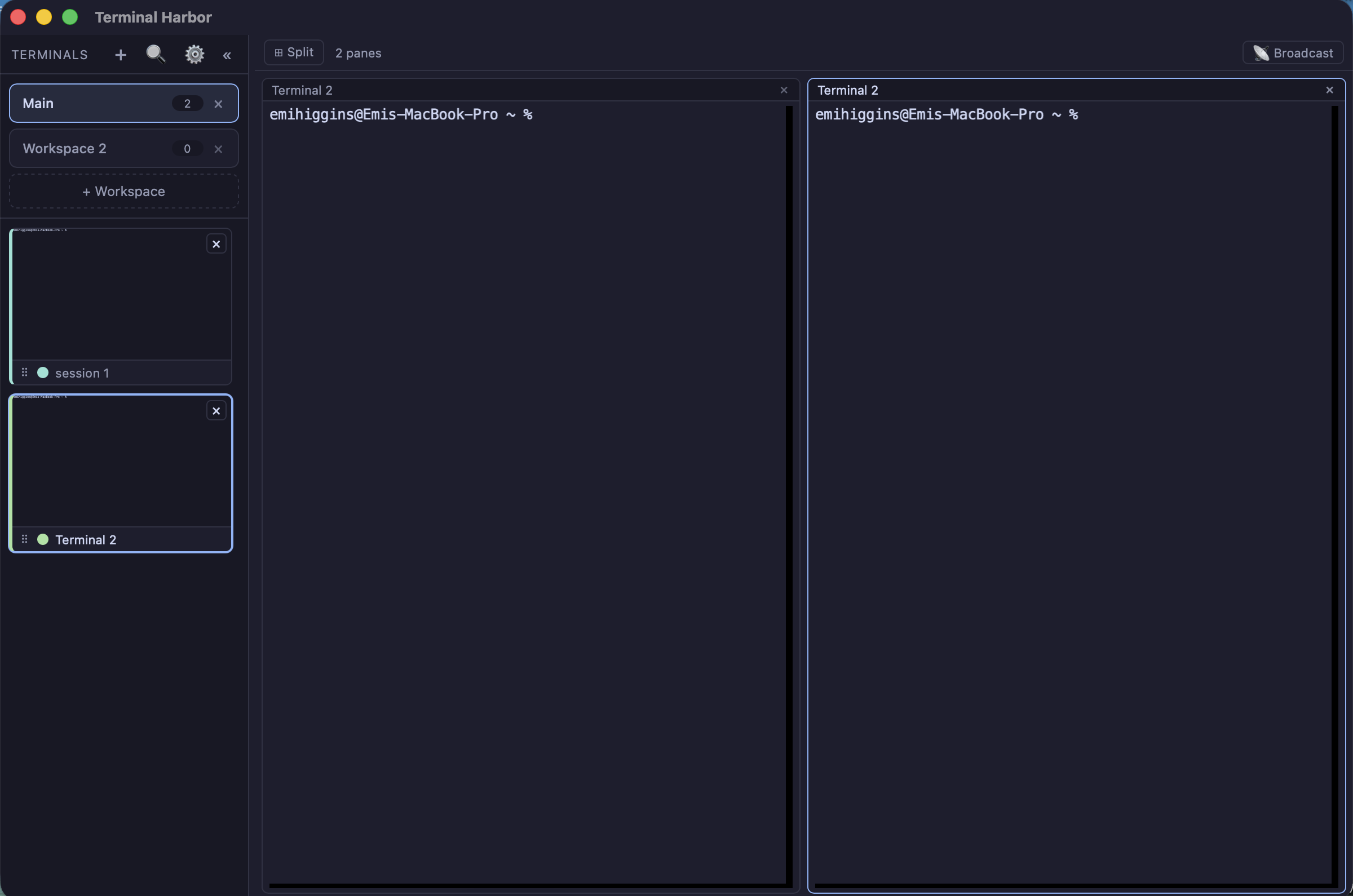
Terminal Harbor is one large focus area with split panes, plus a sidebar of live thumbnails of every session. Each session is a real PTY; the thumbnail is a live mini-preview, so you can see which one is doing something without switching to it. Click a thumbnail to load it into the active pane.
A two-pane split — workspace bars and live session thumbnails on the left, the focus area on the right.
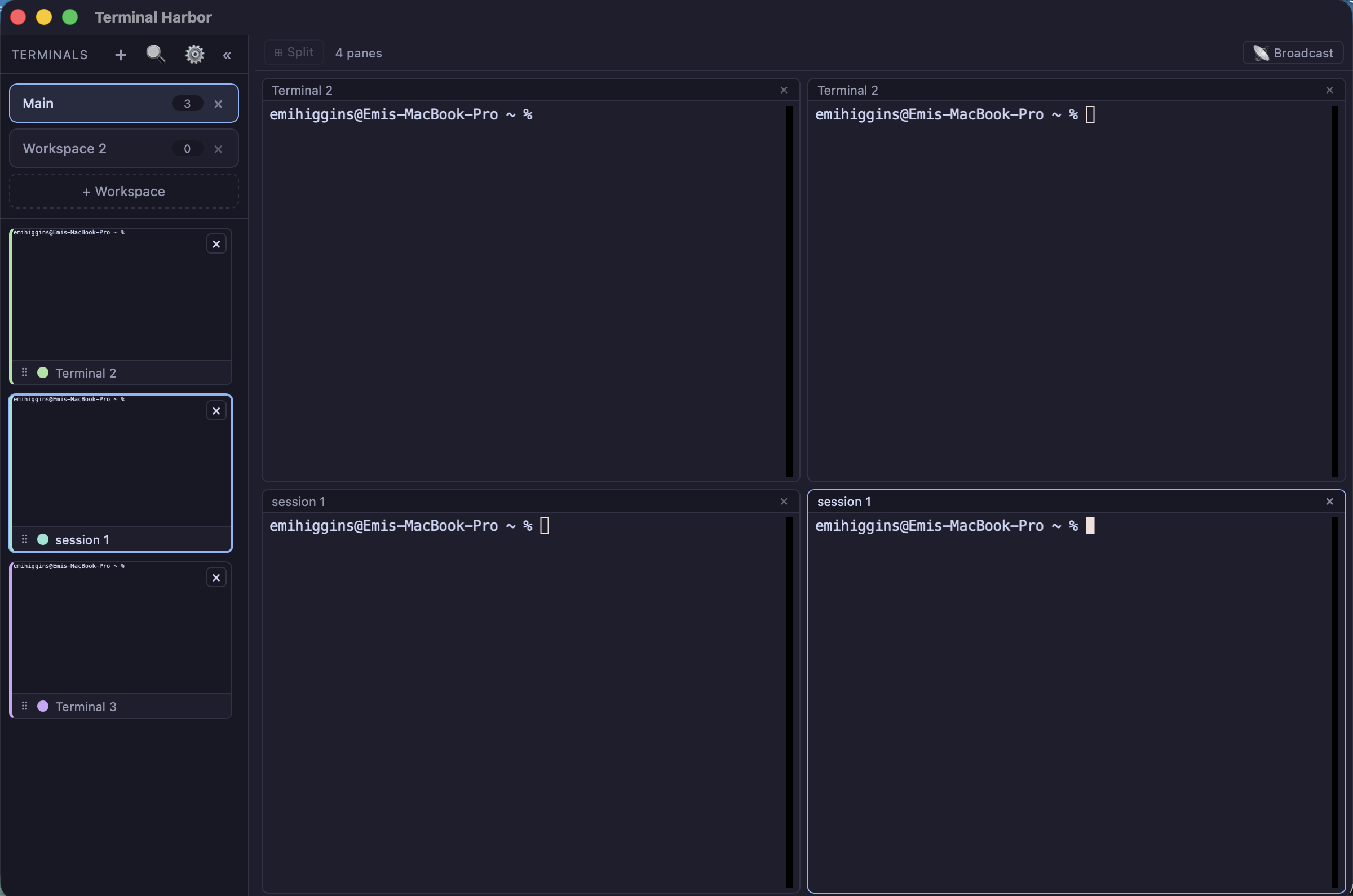
Four panes at once, with color-coded sessions in the sidebar.
Organizing
Workspaces are switchable full-width bars, each showing only its own terminals and keeping its own split layout. Drag a terminal onto a bar to move it between workspaces. Sessions can be renamed inline, dragged to reorder, and color-coded so panes and thumbnails are easy to tell apart. Names, colors, order, split layout, and working directories all persist across relaunches.
Waiting for input
The feature that made it worth building: per-session badges for who needs you. Amber
means a foreground process is blocked on input; red pulsing means a Claude Code agent
needs you, delivered through a hook and a loopback server, with the agent’s message on
the tile. Idle shell prompts are deliberately not flagged — otherwise every session
lights up and the signal is worthless. ⌘⇧J jumps to the next waiting session across
workspaces.
Implementation
Tauri 2 with a Rust core and a React + TypeScript frontend. portable-pty provides
real PTYs, and each session streams raw bytes over a Tauri Channel with end-to-end
backpressure. The focus panes render with xterm.js on WebGL, while @xterm/headless
runs as an always-on model per session — that headless terminal is the source of truth
for thumbnails, pane replay, and cross-session scrollback search.
macOS only for v1.